Monday, August 6, 2012

Web Browsing with Windows 8 and IE10


Web Browsing with Windows 8  and IE10

The upcoming release of Windows 8 will ship with version 10 of Internet Explorer and feature a newly designed Operating System interface named Metro. Metro is similar to the Windows Phone interface currently used by Microsoft on smart phones. Its main goal is to improve touch screen navigation along with traditional mouse and keyboard input for an immersive web browsing experience. Metro is a tile-based interface, each tile represents an application, web page or social media feed. A metro application typically runs in full-screen mode and utilizes a new set of runtime libraries or HTML markup to construct the UI.

IE10 plays an important role in Windows 8 since it interacts with the Metro interface and can also be run in the traditional Windows Desktop view, both modes use the same rendering engine. IE10 will not support plug-ins or ActiveX components but will include a version of Adobe Flash Player that has been improved for use with a touch screen interface.

The rendering engine in IE10 contains many improvements and support for HTML5 and CSS3. Examples of the multiple rendering engine enhancements are: Touch sensitive areas on a page react based on touch or mouse navigation, the ability to adapt website layouts to any device and multiple styling enhancements such a text-shadow and built-in support for OpenType  fonts.
A preview of some of these features can be seen at http://ie.microsoft.com/testdrive/.

When IE10 starts, it runs in full screen mode, swiping the screen reveals the top navigation section which contains a  list of active websites and the footer which contains the navigation controls such the back, address bar, refresh, tools, pin and forward controls. Right click options are limited on IE10, for example there are no options to view the image source or size, holding a finger on a link will only allow to copy and paste it but additional options that exist in IE9 such as view Encoding have been removed.

In IE10 websites can be pinned. This means that the sites will be added as tiles to the desktop. An existing site, when pinned will display on the desktop as a tile using a generic color and IE logo. It is expected that sites will add additional programming to supply a customized icon and description when pinned, an alternative is to supply a metro App to wrap the site content in the same way smart phone and table Apps do. Sites that supply an App are marked with a plus sign in the footer, which allows the developers to redirect the web site to the Microsoft Store to download or purchase the corresponding App for their device. The goal is to create integrated web sites that can be used across all platforms.

Initial tests by Ziff Davis labs indicate that IE’s performance is better than Chrome and FireFox in some areas but not really fit for sites that make extensive use of JavaScript. It is expected that performance will be improved on the final version.

Conclusion: IE10 has been labeled as “the best version of Internet Explorer yet”. The interface enhancements allows the user  to fully experience the content of a website. Web designers that plan on taking full advantage of the Metro version of IE need to keep in consideration that there is no browser interface therefore the site will behave as a standalone App in the same way that is done in mobile devices such as tablets and smart phones, fortunately with support for HTML5 and CSS3 the browser should support all modern design elements. IE10 has been promised to run on Windows 7, Windows 8, Windows Server 2008 R2 and Windows Server 2012 and has been should be available in August 2012.

Monday, May 14, 2012

Implementing a JSON Feed with ASP.Net

Obtaining data from an external web site using a JSON (JavaScript Object Notation) feed is a relatively simple process.

JSON represents data structures using a JavaScript object notation which is human readable. It provides some advantages over XML because it is easier to obtain data from multilevel (nested) structures.

Below is an example of a JSON feed implementation to a service that provides quotes for precious metals at: http://drayah.no.de/metals/latest
The objective is to get the feed from the site in order to  obtain the price of Gold.

Step 1. Create a Class for JSON Feed 


You may want to use the JsonCSharp tool that helps you create a class based on the output from the feed. Check it out at  http://json2csharp.com/ 


using System;
using System.Collections.Generic;
using System.Linq;
using System.Web;

namespace JSONFeed
    {
        public class Gold
            {
            public double quote { get; set; }
            public double quoteKg { get; set; }
            }

        public class Silver
            {
            public double quote { get; set; }
            public double quoteKg { get; set; }
            }

        public class Platinum
            {
            public double quote { get; set; }
            public double quoteKg { get; set; }
            }

        public class Palladium
            {
            public double quote { get; set; }
            public double quoteKg { get; set; }
            }

        public class Metals
            {
            public Gold gold { get; set; }
            public Silver silver { get; set; }
            public Platinum platinum { get; set; }
            public Palladium palladium { get; set; }
            }

    }

Step 2. Creating a Method to invoke the Feed


using System;
using System.Collections.Generic;
using System.Linq;
using System.Web;
using System.Net;
using System.Runtime.Serialization.Json;
using System.Web.Configuration;

namespace JSONFeed
    {
    public class GetFeed
        {

        public double GoldPrice()
            {
            try
                {

                //Get Precious Metals Pricess from Drayah feed 
                //http://drayah.no.de/metals/latest

                string url = "http://drayah.no.de/metals/latest";
                WebRequest request = WebRequest.Create(url);
                WebResponse ws = request.GetResponse();

                //Used http://json2csharp.com/ to auto-generate C# Class
                //for the Json feed.
                //DataContractJsonSerializer will Serialize based on another
                //class named Metals
                DataContractJsonSerializer jsonSerializer =
                             new DataContractJsonSerializer(typeof(Metals));
                Metals _metals =
                   (Metals)jsonSerializer.ReadObject(ws.GetResponseStream());

                if (_metals.gold.quote > 0)
                    return _metals.gold.quote;
                else
                    return 0;

                }
             //Add your exception code here.
            catch (Exception ex)
                {
                return 0;
                }
            }

        }
    }


Step 3. Test Class to run and test the feed

If you believe in using Visual Studio Automated Testing Classes, use the below.


using JSONFeed;
using Microsoft.VisualStudio.TestTools.UnitTesting;
using System;
using Microsoft.VisualStudio.TestTools.UnitTesting.Web;

namespace JSONFeed.Test
{
        
    [TestClass()]
    public class GetFeedTest
        {

        private TestContext testContextInstance;

        ///


        ///Gets or sets the test context which provides
        ///information about and functionality for the current test run.
        ///

        public TestContext TestContext
            {
            get
                {
                return testContextInstance;
                }
            set
                {
                testContextInstance = value;
                }
            }

        #endregion


        [TestMethod()]
        public void GoldPriceTest()
            {
            GetFeed target = new GetFeed();
            double actual;

            actual = target.GoldPrice();
            Assert.AreNotEqual(0, actual);
           
            }
        }
}

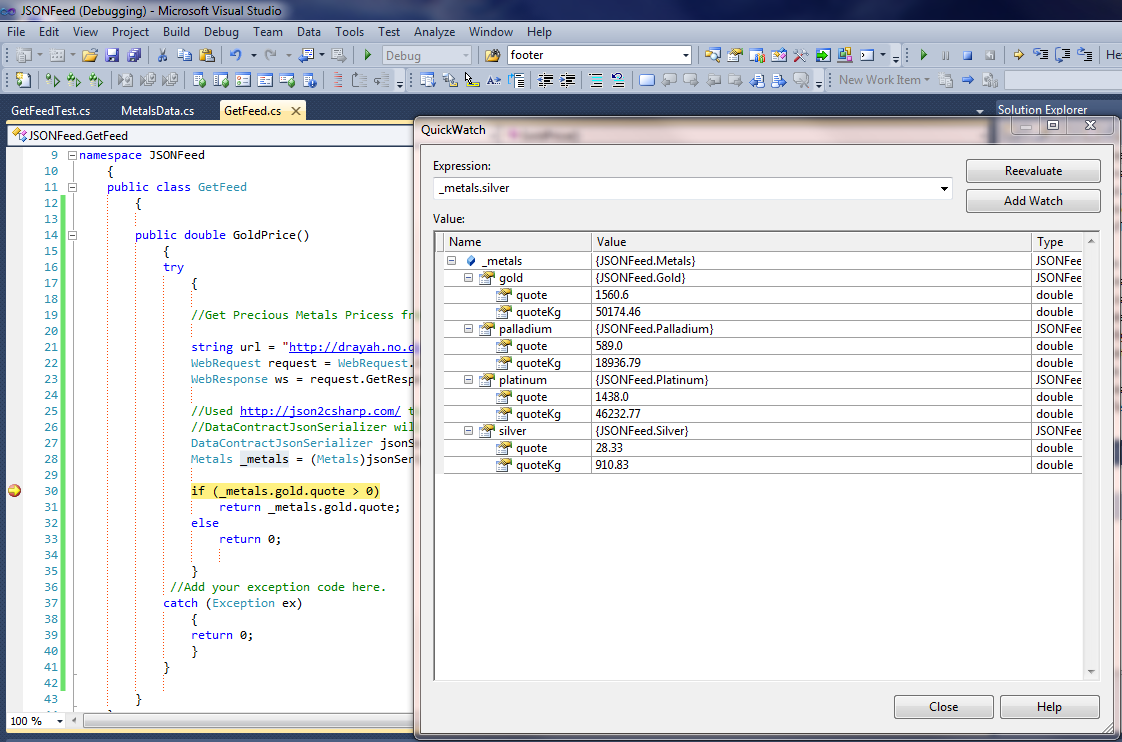
The GoldPrice() Method, invokes the jsonSerializer which will try to match the output of the feed with the appropriate class which in this case is the class named Metals. The data will be filled into the corresponding subclass. If the data contains multiple rows of information, it needs to be defined as a list so the serializer knows that multiple rows are affected.

Below is a screenshot of the output after it's been serialized.


Hope this helps,
Happy coding.


Wednesday, January 18, 2012

Make your voice heard!

As some of you may already know, some sites are going dark for a day.
SOPA and PIPA have the potential to affect all of those that make a living out of the internet, Google’s got a petition going and I figured that I would pass it along.

Do with it what you will: https://www.google.com/landing/takeaction/

Blacked out sites:


Sites that aren’t going dark, but still raising awareness:


Information about SOPA and PIPA: https://www.google.com/landing/takeaction/sopa-pipa/
Nice Blog:
http://www.bayshoresolutions.com/blog/emarketing/stop-sopa-and-pipa-make-your-voice-heard/

Make your voice heard!

Thursday, December 1, 2011

Show Indentation Lines in Visual Studio 2010

Have you found yourself wondering if your HTML tags have matching closing tags?
Wouldn’t it be great to have a visual aid to help you read your code and verify that is aligned properly and the tags match?

There is a great Visual Studio extension named Indent Guides which you can download from CodePlex, @ http://visualstudiogallery.msdn.microsoft.com/e792686d-542b-474a-8c55-630980e72c30 once installed, restart Visual Studio and you can easily notice that your source code has now a visual line that you can use to ensure indentation is correct and to match tags. See screenshot below.


Speaking of Visual Studio tips and tricks, here are another couple of tricks to improve the editor experience:

- You can use Ctrl+E, D to format the selected text. This would add indentation to your code so it is easier to read, although you may want to use with caution because the indentation can be excessive for some people. You can find this option on the Edit -> Advanced menu.
- A common question is how to display Line number on the Visual Studio 2010 editor. To do so, go to the Tools menu, click on Options -> Expand Text Editor, select a language, for example C# and click on General if is not selected automatically. Then on the last section of the window named “Display” enable the Line Numbers checkbox.
- What if the code you are reading is all collapsed because somebody else used the Outline feature? Well you can quickly turn off the Outline by pressing Ctrl+M, P, you can find all the Outline options on the Edit menu Outlining

Hope this helps somebody out there,
Will

Wednesday, November 23, 2011

Clearing Another User's Checkout in TFS

A long gone coworker has left a few objects checked out in TFS, now you discover that you need to clear the checkout in order to incorporate new changes. How can this be done?

Clearing out another user's check out is NOT supported from the GUI, however there is a command line option to accomplish this:

- From Visual Studio Tools in the Start menu, open the Visual Studio Command Prompt
- If you use TFS, your workstation should have the TF command available, then type:

C:\Program Files (x86)\Microsoft Visual Studio 10.0\VC>TF undo /workspace:WorkstationName;UserName $/ProjectName/ObjectName.cs /s:http://YourTFSServer:8080

Once the command completes, refresh the Source Control Explorer to see the changes, you may also need to  get the latest version of the project if multiple objects have been locked for a long period of time.

Hope this helps,
Will