Here is a useful and handy trick is to write the contents of a directory listing to a text file so you can create a report or execute a search in another tool, say Word or Excel.
I've used this in the past for other simple stuff for example, creating a spreadsheet out of a massive MP3 directory. Since I have music organized by album, each album being a directory I wanted to write the contents of My Music to a text file.
Go to CMD:
C:\User\My Music>dir *. >>Music.txt
This will list only directories and send the contents to the music.txt file. Of course you must have write permissions in the directory.
If you want a cleaner listing. Say only the directory names without any other information try:
C:\User\My Music>dir *. /b >>Music.txt
Hope it helps,
Will

Showing posts with label Windows 7. Show all posts
Showing posts with label Windows 7. Show all posts
Saturday, November 12, 2011


Thursday, October 20, 2011
Where is Microsoft Outlook Temp Folder? (Windows 7 and Outlook 2010)
Ever wondered where Microsoft Outlook stores temp files?
It is useful to know this location, so you can go there and delete the multiple copies of attachments and pictures and other Outlook files. It can also be useful if you are looking for an attachment contained in a message that you deleted by mistake.
For Outlook 2010 running under Windows 7 go to:
C:\Users\UserName\AppData\Local\Microsoft\Windows\Temporary Internet Files\Content.Outlook
In this folder you will find that there is one or multiple folders named with a random combination of numbers and letters, for example: 82UOSVIP
Inside this directory you will find attachments and pictures stored by Outlook.
If you are curious. This is stored in a registry entry:
Data Type: REG_SZ
If you need more info, or you are looking for the temp folder in previous versions of Outlook, go to:
http://support.microsoft.com/kb/817878
It is useful to know this location, so you can go there and delete the multiple copies of attachments and pictures and other Outlook files. It can also be useful if you are looking for an attachment contained in a message that you deleted by mistake.
For Outlook 2010 running under Windows 7 go to:
C:\Users\UserName\AppData\Local\Microsoft\Windows\Temporary Internet Files\Content.Outlook
In this folder you will find that there is one or multiple folders named with a random combination of numbers and letters, for example: 82UOSVIP
Inside this directory you will find attachments and pictures stored by Outlook.
If you are curious. This is stored in a registry entry:
HKEY_CURRENT_USER\Software\Policies\Microsoft\Office\14.0\Outlook\Security
Value Name: OutlookSecureTempFolderData Type: REG_SZ
If you need more info, or you are looking for the temp folder in previous versions of Outlook, go to:
http://support.microsoft.com/kb/817878
Tuesday, October 4, 2011
How to Force an Application to Open in Administrator Mode without Prompt
Say you have an application, in my case the ancient PowerBuilder and you want it to always "Run as Administrator" so it has access to writing files to the Program Files (x86) folder instead of the users AppData folder.
Obviously you don't want to turn off UAC, that would be silly.
Here is a little trick that I've been using for a while to get an application to open without the annoying User Account Control prompt asking you to Allow the Application to run in Admin mode.
1. Go go the Administrative Tools -> Scheduled Tasks
2. Create a new Scheduled Task
 3. Add a Task name and then make sure you select the "Run with highest privileges" option
 4. Click on the Actions tab and then browse for the Application you want to open. In my case PowerBuilder

5. Click OK to save the task. Make a note of the Task Name you assigned.
6. Now, create a shortcut, on the target, you will call the task scheduler and then send as an argument the name of the task you previously created, like this: C:\Windows\System32\schtasks.exe /run /tn "YourTaskName" this will run your taks by invoking the Task Scheduler Directly.

You are all set, now use the shortcut to access your application. It will open with Administrative privileges.
If you would like to see this workaround in action and get additional details, please check my video posting below:
Hope it helps,
Will
Obviously you don't want to turn off UAC, that would be silly.
Here is a little trick that I've been using for a while to get an application to open without the annoying User Account Control prompt asking you to Allow the Application to run in Admin mode.
1. Go go the Administrative Tools -> Scheduled Tasks
2. Create a new Scheduled Task


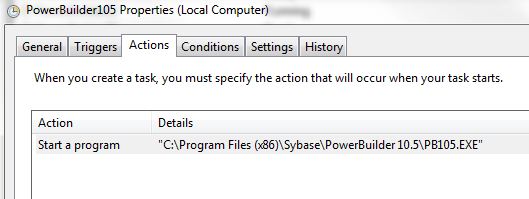
5. Click OK to save the task. Make a note of the Task Name you assigned.
6. Now, create a shortcut, on the target, you will call the task scheduler and then send as an argument the name of the task you previously created, like this: C:\Windows\System32\schtasks.exe /run /tn "YourTaskName" this will run your taks by invoking the Task Scheduler Directly.

You are all set, now use the shortcut to access your application. It will open with Administrative privileges.
If you would like to see this workaround in action and get additional details, please check my video posting below:
Hope it helps,
Will
Subscribe to:
Posts (Atom)