Showing posts with label C#. Show all posts

Wednesday, April 3, 2013

Building an eCommerce Site with NopCommerce


Below is a blog entry I wrote for Bayshore Solutions in March, 2013. It contains information about my experience implementing NopCommerce. Hopefully some of the contents provide valuable information for somebody else. Enjoy!

Not long ago, an online store was seen as a means of adding presence to traditional brick-and-mortar stores. According to the National Retail Federation, online shopping makes up to 40% of retail purchases for an average person these days.

Clearly the convenience of eCommerce has been embraced by consumers and the trend is unlikely to change, therefore many retailers are reinventing their business in order to make their products available on the web.

Bayshore Solutions has worked with many retailers to support their eCommerce efforts by building state of the art sites that help businesses expose their products in ways never seen before.
Although there are plenty of tools available to create an on-line store, one of the most common tools used by Bayshore Solutions to develop a custom eCommerce store is NopCommerce.


NopCommerce is an open source shopping cart designed and developed by a group of entrepreneurs from many different countries using state of the art technology; this has transformed NopCommerce into one of the preferred solutions for developing eCommerce sites under the .NET Platform.

NopCommerce offers a quick and effective way to get a store started; installation is a breeze thanks to their web install. NopCommerce has a wealth of features and capabilities out of the box. Below is a summary of some key features:

  • Unlimited Number of products on the catalog
  • Support for categories, subcategories and manufacturers
  • Product Attributes
  • Management of Stock by Attribute
  • Ability to manage discounts by role
  • Tier pricing
  • Customer can enter price
  • Support for downloadable products
  • Anonymous checkout
  • Open ID, Facebook and Twitter Authentication
  • One page checkout
  • Multilingual/Internationalization
  • Multiple Shipment methods and shipment amount calculations
  • Free shipping over $X amount
  • Support for multiple payment methods
  • Extensible interface that allows creating custom plug ins
  • Sales dashboard
  • Import/Export of basic data
  • PDF Invoicing
  • Source code is provided for the entire product. The source code is well organized, documented and it is possible to extend it and modify it to accomplish any task imaginable.

A detailed list of features can be found at: http://www.nopcommerce.com/featurelist.aspx

Despite the fact that NopCommerce offers a great amount of features and functionality, there are multiple challenges to overcome when building an eCommerce site using this tool. Some of the common challenges faced when building a custom NopCommerce site are listed below:

  • Design integration, although the system includes the ability to incorporate new themes; it is always challenging to incorporate layouts that modify the default. Adding custom styles to NopCommerce native controls is not simple; this usually requires a developer in conjunction with a graphic designer.
  • Importing product and attribute data could be complicated when interfacing disconnected systems, for example trying to feed a catalog of existing products from an ERP system to NopCommerce will require a customization in most cases. Assuming that the source of the data will be the ERP system it will be necessary to create a scheduled task that will load the products once or multiple times a day by using an external CSV file or a web feed.
  • Implementing complex shipping, taxes or payment methods could be challenging. Although the framework includes a myriad of shipping, taxes and payment options, customized business rules are difficult to implement. For example taxes can be calculated based on a zip code and percentage, however if the business requires to set a threshold before applying taxes, then a customization to an existing tax calculation plug-ins would have to performed. Consider the following scenario: Charge taxes by zip code but only apply taxes to purchases over $500, although the first part of the requirement is met out of the box, there is no way to set a rule to only charge taxes for purchases over $500.
  • Heavy content sites: Although NopCommerce includes a feature that allows the user to create content and display it, it is not meant to be used on a heavy content site that involves pages, subpages and dynamic navigation. Since the main purpose of NopCommerce is to build a store, content can be included but within its limits. Bayshore Solutions usually approaches this issue by building a content site, with a store domain. Both sites have the same look and feel but when the user clicks on any feature that requires displaying inventory, they are taken to the NopCommerce store.
  • Additional data fields. Because of the number of features in NopCommerce, a common request is the need is to store additional information linked to existing NopCommerce entities in order  to better match the business need being addressed by the site; for example add additional customer information such as: phone numbers, addresses, comments or business related information. Although it would be tempting to add these extra pieces of data to existing NopCommerce entities, it is often easier to create separate objects and layers to hold and manage this data and link them to the default entities; this will allow to better maintain the site and to facilitate a possible future upgrade.


Monday, March 11, 2013

Creating a Generic List of Anonymous Types using Casting by Example

Consider the following scenario. You have two lists of data which are the result of separate queries. The select in the queries is identical and you want to merge the lists into a generic anonymous list to display the results in a control.

The code below receives a pipe delimited string, the string contains keywords. The code loops the string array and executes two separate queries against separate fields (coded this way for the purpose of this example) the biggest obstacle would be how to combine the results of the queries into a single list.

In order to merge the lists into one, it is possible to use a technique called Casting by Example, by creating an anonymous type that matches the intended select, it will be possible to cast this type into an array and then into a list. See below:

var result = new {Id = 1, CriteriaId = 0, MarketName = string.Empty};
var results = (new[] {result}).ToList();
Here is the complete code for your review:
var keywords = p.Split('|');
if (keywords.Length == 0)
    return;
           
var result = new {Id = 1, CriteriaId = 0, MarketName = string.Empty};
var results = (new[] {result}).ToList();
                
using (var ctxt = new MarketSearchDataContext())
{                
  foreach (var keyword in keywords)
  {
   var nameResults = ctxt.Markets.Where(m => m.MarketName.ToLower()
       .Contains(keyword.ToLower().Trim()))
       .Select(m => new {Id = m.Id, CriteriaId = 0, MarketName = m.MarketName})
       .ToList();

   var detailResults = ctxt.Markets.Where(m => m.HTML
       .Contains(keyword.ToLower().Trim()))
       .Select(m => new { Id = m.Id, CriteriaId = 0, MarketName = m.MarketName })
       .ToList();
   if (nameResults.Count > 0)
       results.AddRange(nameResults);

   if (detailResults.Count > 0)
        results.AddRange(detailResults);
}

//Raw results from the list - Duplicates will exist
results.RemoveAt(0); //Cast by Example row
var cleanResults = results.Distinct();

BindResultsGrid(cleanResults);

Monday, May 14, 2012

Implementing a JSON Feed with ASP.Net

Obtaining data from an external web site using a JSON (JavaScript Object Notation) feed is a relatively simple process.

JSON represents data structures using a JavaScript object notation which is human readable. It provides some advantages over XML because it is easier to obtain data from multilevel (nested) structures.

Below is an example of a JSON feed implementation to a service that provides quotes for precious metals at: http://drayah.no.de/metals/latest
The objective is to get the feed from the site in order to  obtain the price of Gold.

Step 1. Create a Class for JSON Feed 


You may want to use the JsonCSharp tool that helps you create a class based on the output from the feed. Check it out at  http://json2csharp.com/ 


using System;
using System.Collections.Generic;
using System.Linq;
using System.Web;

namespace JSONFeed
    {
        public class Gold
            {
            public double quote { get; set; }
            public double quoteKg { get; set; }
            }

        public class Silver
            {
            public double quote { get; set; }
            public double quoteKg { get; set; }
            }

        public class Platinum
            {
            public double quote { get; set; }
            public double quoteKg { get; set; }
            }

        public class Palladium
            {
            public double quote { get; set; }
            public double quoteKg { get; set; }
            }

        public class Metals
            {
            public Gold gold { get; set; }
            public Silver silver { get; set; }
            public Platinum platinum { get; set; }
            public Palladium palladium { get; set; }
            }

    }

Step 2. Creating a Method to invoke the Feed


using System;
using System.Collections.Generic;
using System.Linq;
using System.Web;
using System.Net;
using System.Runtime.Serialization.Json;
using System.Web.Configuration;

namespace JSONFeed
    {
    public class GetFeed
        {

        public double GoldPrice()
            {
            try
                {

                //Get Precious Metals Pricess from Drayah feed 
                //http://drayah.no.de/metals/latest

                string url = "http://drayah.no.de/metals/latest";
                WebRequest request = WebRequest.Create(url);
                WebResponse ws = request.GetResponse();

                //Used http://json2csharp.com/ to auto-generate C# Class
                //for the Json feed.
                //DataContractJsonSerializer will Serialize based on another
                //class named Metals
                DataContractJsonSerializer jsonSerializer =
                             new DataContractJsonSerializer(typeof(Metals));
                Metals _metals =
                   (Metals)jsonSerializer.ReadObject(ws.GetResponseStream());

                if (_metals.gold.quote > 0)
                    return _metals.gold.quote;
                else
                    return 0;

                }
             //Add your exception code here.
            catch (Exception ex)
                {
                return 0;
                }
            }

        }
    }


Step 3. Test Class to run and test the feed

If you believe in using Visual Studio Automated Testing Classes, use the below.


using JSONFeed;
using Microsoft.VisualStudio.TestTools.UnitTesting;
using System;
using Microsoft.VisualStudio.TestTools.UnitTesting.Web;

namespace JSONFeed.Test
{
        
    [TestClass()]
    public class GetFeedTest
        {

        private TestContext testContextInstance;

        ///


        ///Gets or sets the test context which provides
        ///information about and functionality for the current test run.
        ///

        public TestContext TestContext
            {
            get
                {
                return testContextInstance;
                }
            set
                {
                testContextInstance = value;
                }
            }

        #endregion


        [TestMethod()]
        public void GoldPriceTest()
            {
            GetFeed target = new GetFeed();
            double actual;

            actual = target.GoldPrice();
            Assert.AreNotEqual(0, actual);
           
            }
        }
}

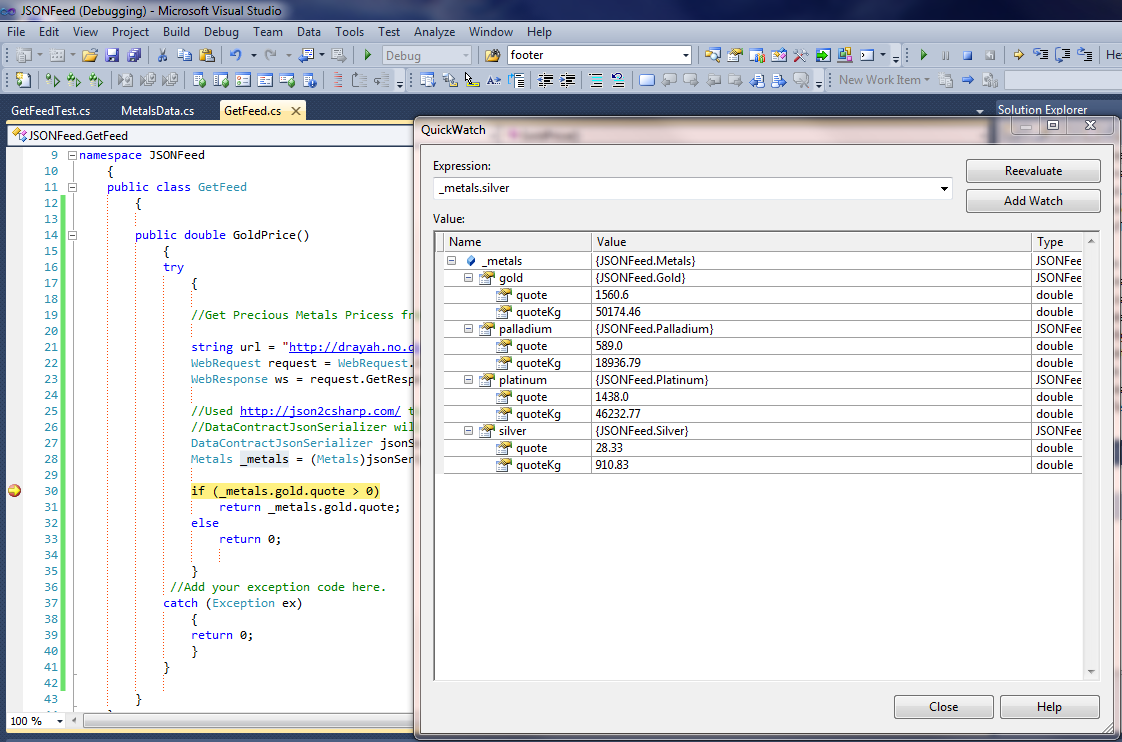
The GoldPrice() Method, invokes the jsonSerializer which will try to match the output of the feed with the appropriate class which in this case is the class named Metals. The data will be filled into the corresponding subclass. If the data contains multiple rows of information, it needs to be defined as a list so the serializer knows that multiple rows are affected.

Below is a screenshot of the output after it's been serialized.


Hope this helps,
Happy coding.


Thursday, December 1, 2011

Show Indentation Lines in Visual Studio 2010

Have you found yourself wondering if your HTML tags have matching closing tags?
Wouldn’t it be great to have a visual aid to help you read your code and verify that is aligned properly and the tags match?

There is a great Visual Studio extension named Indent Guides which you can download from CodePlex, @ http://visualstudiogallery.msdn.microsoft.com/e792686d-542b-474a-8c55-630980e72c30 once installed, restart Visual Studio and you can easily notice that your source code has now a visual line that you can use to ensure indentation is correct and to match tags. See screenshot below.


Speaking of Visual Studio tips and tricks, here are another couple of tricks to improve the editor experience:

- You can use Ctrl+E, D to format the selected text. This would add indentation to your code so it is easier to read, although you may want to use with caution because the indentation can be excessive for some people. You can find this option on the Edit -> Advanced menu.
- A common question is how to display Line number on the Visual Studio 2010 editor. To do so, go to the Tools menu, click on Options -> Expand Text Editor, select a language, for example C# and click on General if is not selected automatically. Then on the last section of the window named “Display” enable the Line Numbers checkbox.
- What if the code you are reading is all collapsed because somebody else used the Outline feature? Well you can quickly turn off the Outline by pressing Ctrl+M, P, you can find all the Outline options on the Edit menu Outlining

Hope this helps somebody out there,
Will

Tuesday, November 15, 2011

Using DotNetZip Library to Compress Data in ASP.Net

I recently worked on a project that involved creating encrypted Zip files. Data is captured on a web form and then written to a text file.
At first, the task sounded complex. However, if you are aware of the DotNetZip library existence, your task just got easier.

You can download the DotNetZip library from http://dotnetzip.codeplex.com/
Once you download and install the package, you will need to add a reference to Ionic.Zip.dll or copy the file to your \lib folder, this is all you need to start generating your own zip files.

The best part: DotNetZip is free!!

DotNetZip is well documented and is much easier to use than any other solutions out there including System.IO.Compression and SharpZipLib, after trying both methods I would highly recommend DotNetZip because is incredibly easy to use.

Below is a sample method to illustrate how to easily to compress content that is being passed as a string.
The method takes the file name and the content as arguments:

internal MemoryStream ZipString(string aZipFileName, string aContents, string aMode)
{
    try
    {
        //Add these to your AppSettings on Web.Config
        string sZipFilePassword = ConfigurationManager.AppSettings["ZipFilePassword"];
        string sZipFileEncryption = ConfigurationManager.AppSettings["ZipFileStrongEncryption"];

        //Stored the zippped data on this memory stream
        MemoryStream msZippedContent = new MemoryStream();
        // Creating Zip
        using (var zip = new ZipFile())
        {
            // Add the password protection
            zip.Password = sZipFilePassword;
            if (sZipFileEncryption == "N")
            {
                //PkZipWeak is not a string encryption method, but is supported by any UnZip utility
                zip.Encryption = EncryptionAlgorithm.PkzipWeak;
            }
            else
            {
                //WinZipAes128 and WinZipAes256 is NOT compatible with Windows ZIP
                zip.Encryption = EncryptionAlgorithm.WinZipAes256;
            }

            // Add the desired file to the Zip
            zip.AddEntry(aZipFileName, aContents, Encoding.ASCII);

            // Send the contents of the ZIP back to the output stream
            zip.Save(msZippedContent);
            return msZippedContent;
        }
    }
    catch (Exception genEx)
    {
        Response.Write(genEx.Message);
        return null;
    }

}//ZipString

The method declares a variable of type ZipFile which is available once you add a reference: "using Ionic.Zip;" That declaration creates the shell of the zip file. After that, the process to save the file is simple, add a password if needed, add an encryption method and you can proceed to add an entry to the Zip file by using AddEntry.
Of course, you could add multiple files to the same Zip archive. Finally, you can Save the contents of the Zip which in this case are returned by the method as a MemoryStream that could be used for other purpose such as creating an e-mail attachment.

Be aware that if you need to encrypt the contents of the zip, choosing the encryption method is important because the built-in Windows unzip feature can only decrypt PkZip.Weak content. You would need to have WinZip or WinRar Installed on the target workstation to unzip contents encrypted with the WinZipAes128 or WinZipAes256 methods.

Hope this is helpful and feel free to contact me if you have any questions,
Will


Saturday, November 12, 2011

How to clear a String Builder?

How to clear a StringBuilder?
By now you probably realized that rhere is no Clear method.

You can use the two lines below, the assumption is that you are going to reuse the StringBuilder several times in your code and you want to temporarily clear it to ensure is empty and ready for a new assignment.

sbSQL.Length = 0;
sbSQL.Capacity = 0;


This trims the contents but also shortens the capacity to zero. I was surprised to noticed that both Length and Capacity properties are writable.

Hope it helps,
Will


Thursday, November 3, 2011

Exporting Data as XML in a MemoryStream with Download Prompt

The below snippet demonstrates how to generate XML content on the fly and then storing the contents in memory. (MemoryStream)
This practice is useful if the output can't be saved on the server and avoids the hassle of dealing with permissions. Instead the XML is generated in memory and then the user will be automatically prompted to download the XML file to their local resource, similar to what happens when attempting to download a file.

protected bool GenerateExportFile()
{
           
    try
    {
            //Create Memory Stream to store XML Data
            MemoryStream ms = new MemoryStream();
            //Use a writer to greate the XML
            using (XmlWriter writer = XmlWriter.Create(ms))
            {
                writer.WriteStartDocument(); //Header
                writer.WriteComment("Comment goes here");
                {
                    writer.WriteStartElement("Root"); //<Root>
                    {
                            writer.WriteStartElement("Element1"); //<Element1>
                            writer.WriteAttributeString("Attribute1", "AtributeValue");

                            writer.WriteStartElement("Element2");
                            writer.WriteString("Element2Value");
                            writer.WriteEndElement(); //<Element2>

                    }
                    writer.WriteEndElement(); //<Root>
                    //Closed the Root Tag
                }
                writer.WriteEndDocument();
                writer.Close();

                //Convert Memory Stream to Byte Array
                byte[] data = ms.ToArray();
                //The Proposed FileName that will show when the user is prompted to save the file
                string xmlFileName = "OrdExp_" + DateTime.Today.Year.ToString() + DateTime.Today.Month.ToString("00") + DateTime.Today.Day.ToString("00");
                                               
                //Creating the Context
                HttpContext.Current.Response.Clear();
                //Heads up browser, here comes some XML
                HttpContext.Current.Response.ContentType = "text/xml";
                HttpContext.Current.Response.AddHeader("Content-Disposition:", "attachment;filename=" + HttpUtility.UrlEncode(xmlFileName));
                //Set the size of the file so the progress bar reports that correctly
                HttpContext.Current.Response.AddHeader("Content-Length", data.Length.ToString());
                //Download the file and prompt the user to save
                HttpContext.Current.Response.BinaryWrite(data);
                HttpContext.Current.Response.End();
                ms.Flush();
                ms.Close();


                return true;
            }
    }
    catch (Exception exc)
    {
        lblMsg.Text = "Error Generating File: " + exc.Message;
        return false;
    }           
    return true;  
}//Method


This code was used to generate XML data output and then added the ability to automatically export the data to a local machine.
Hope this helps,
Will


Thursday, October 27, 2011

How to receive execution arguments on a C# WinForms Application?

The below code that illustrates how to receive arguments for a WinForms Application.The example expects two arguments and validates that the are converted properly.
If the appropiate argumetns are sent, these are stored in a public class named GlobalVars.


[STAThread]
 static void Main( string[] MyArgs)
 {
     Application.EnableVisualStyles();
     Application.SetCompatibleTextRenderingDefault(
false);

     if (MyArgs.Length == 0 || MyArgs.Length < 2)
     {
        MessageBox.Show(
        "Please specify Parm1 and Parm2 as Arguments in order to
         Proceed.",
        "YourAppTitle", MessageBoxButtons.OK, MessageBoxIcon.Error);
        Application.Exit();
        return;
      }
      else
      {
         try
         {
            GlobalVars lGlobalVars =
new GlobalVars(); 
            lGlobalVars.gOrderSkey = Int64.Parse(MyArgs[0]);
            lGlobalVars.gShipmentNo = Int64.Parse(MyArgs[1]);
          }
          catch (Exception Ex)
          {
             MessageBox.Show(
          "Invalid Parm1 and/or Parm2 Arguments. Please verify. \rError: "
          + Ex.Message, "YourAppTitle",
          MessageBoxButtons.OK, MessageBoxIcon.Error);
          Application.Exit();
          return;
          }
          Application.Run(
new Form1());   
      }

}

Notice the "\n" to break down the MessageBox in two lines. Is a nice little trick that I often forget
Hope this helps,
Will